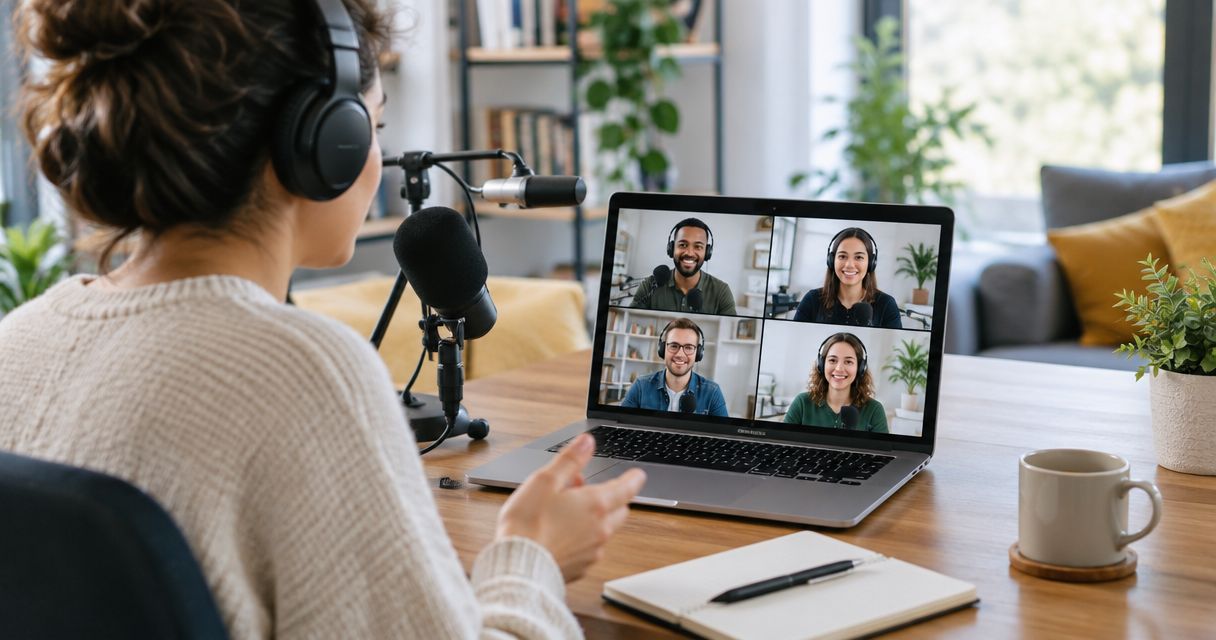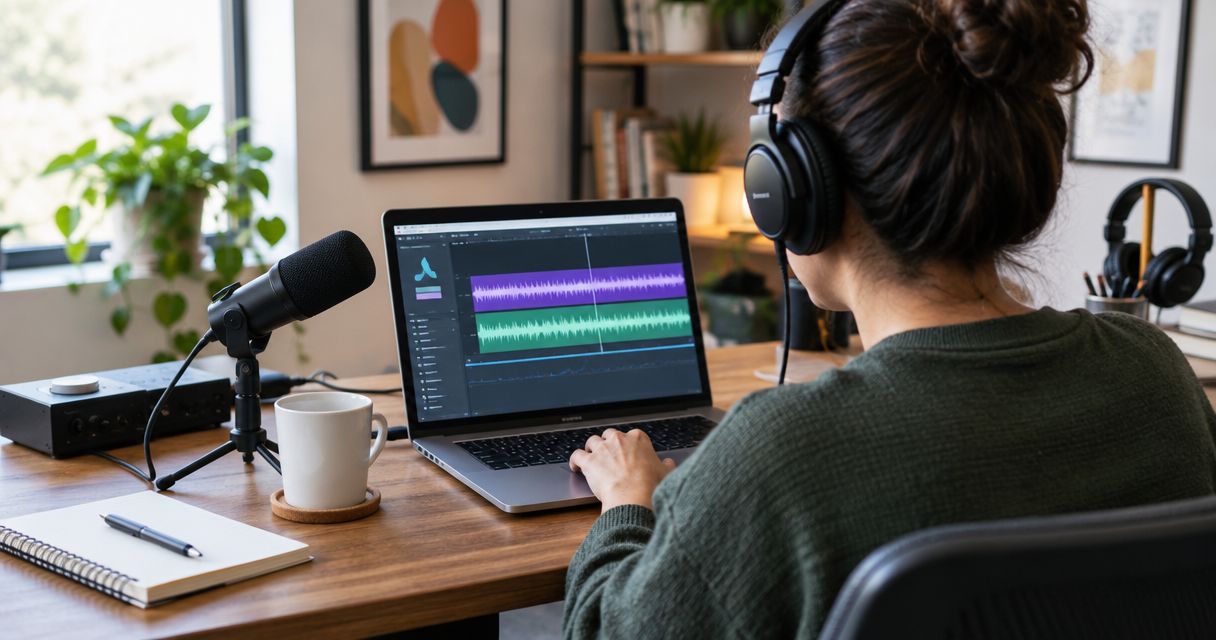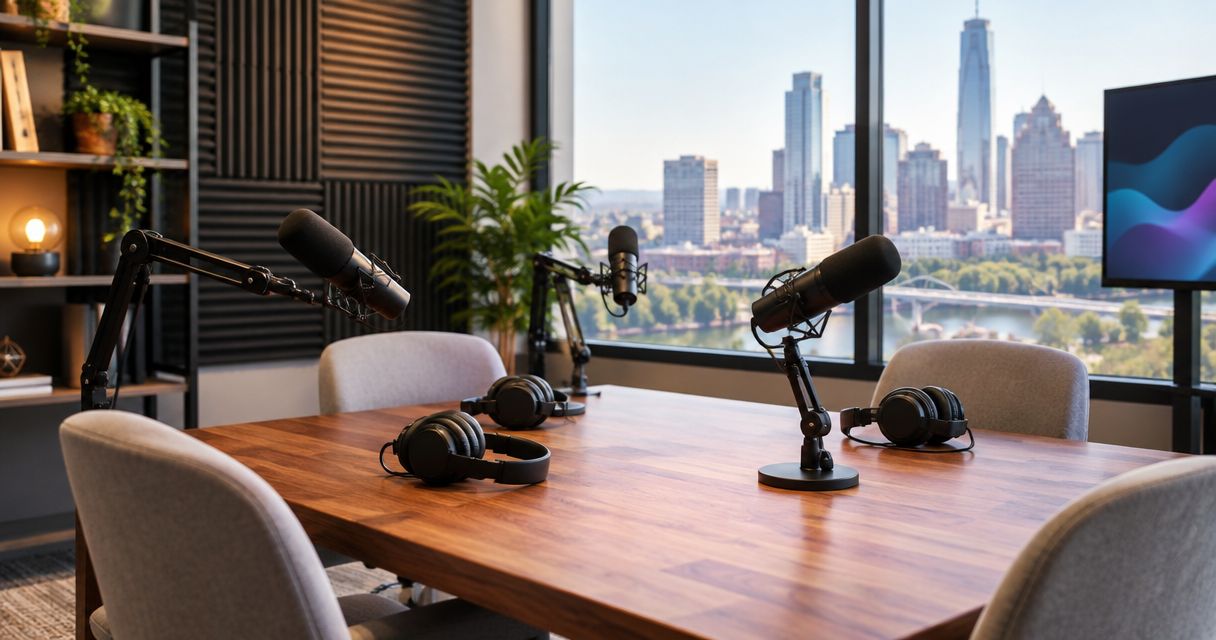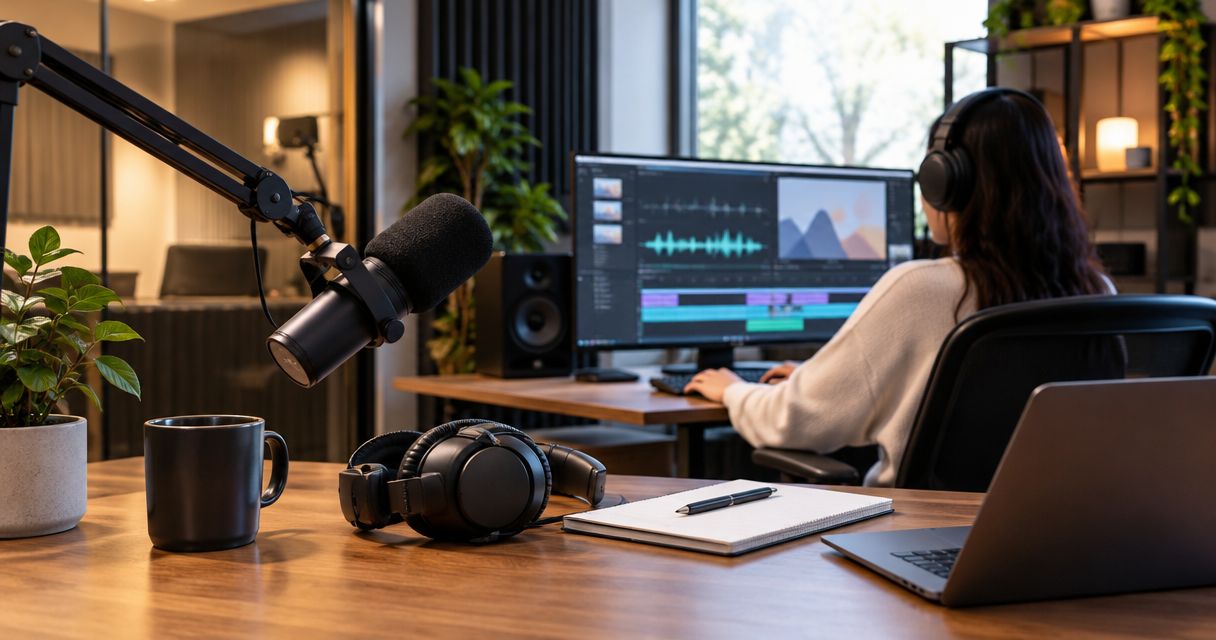
Instead of rebuilding your episode from scattered downloads, use a podcast studio recording to Descript workflow: download your Google Drive delivery, check the source files, import the recording, edit the transcript, and review the export. Justpushrecord operates JPR Studios, with one-button, three-camera podcast recording and Google Drive file delivery; the workflow below covers the handoff from recording to a finished episode in 2026.
- Justpushrecord podcast studios suit hosts who want crew-free recording; Descript handles the separate editing stage.
- Podcast studio recording to Descript starts with checking your Google Drive files, not importing everything immediately.
- Use transcript editing for content cuts, then watch and listen to confirm every transition.
- Finish the full episode before creating podcast clips; preserve an untouched source copy.
Why this matters
Justpushrecord podcast studios are best for hosts, creators, and businesses who want to record without a crew. Recording and editing remain separate jobs. A one-button session removes the need to operate the recording setup, but you still need to choose the source material, check the transcript, and approve the finished episode.
Descript lets you edit recorded speech through a transcript. That makes spoken-content decisions easier to locate, but a transcript does not show every visual problem or explain every pause. Watch the picture and listen to the sound before approving a cut.
For your 2026 workflow, choose the editing route from the files you actually receive—not from the number of cameras in the studio.
| Editing route | Best for | Advantage | Limitation |
|---|---|---|---|
| Single-file edit | Hosts working from a complete episode recording | Keeps the initial import and content edit straightforward | Camera changes already baked into the file are not independent source angles |
| Separate-source edit | Editors who have separate recordings and need angle control | Preserves more source-level editing choices | Requires alignment checks and careful handling of overlapping audio |
Start with the single-file edit when your delivery includes the complete recording you want to use. Choose separate sources only when you need that control and have the necessary files.
Before you start
- Get access to the recording and the editor. You need the Google account permitted to open the delivery, a Descript account, and permission to download and edit the material. Confirm guest consent and any restrictions on publication before editing.
- Prepare a local working folder. Keep an untouched source copy, a working copy, and a short episode brief covering the intended audience, required sections, names, and any statements that need checking. Download files completely before importing them.
- Check the non-obvious gotcha: three cameras do not define the file package. Inspect your actual delivery before planning separate-angle editing. A finished video and separate camera recordings require different preparation; do not treat them as interchangeable.
Assign one person to approve the final episode. Conflicting instructions from several reviewers create avoidable rework, especially when someone reviews an earlier export instead of the current version.
Source preparation
Check the delivery
- Open the delivered folder in Google Drive using the account that has access. Confirm that the folder belongs to the correct recording session. Check the filenames against your episode notes before downloading.
- Select the recording files you need and use Download. If the download arrives as an archive, extract it before trying to import the media. Keep the original filenames in your source folder.
- Play each intended source locally. Check the beginning, a passage in the middle, and the ending. Listen for both speakers, confirm that the picture plays, and distinguish the complete episode from a test recording or an alternate take.
- Separate the material into Source copy and Working copy folders. Make edits from the working copy. Leave the source copy untouched so you can recover a removed passage or restart an edit without requesting another delivery.
Expected result: You have a complete local recording, know which file belongs to the episode, and have an untouched backup.
Do not rename a file extension to make an import succeed. Changing the letters after the filename does not convert the media inside it. If a file will not play locally, resolve that problem before opening an editing project.
Use a descriptive project name that includes the show, episode topic, and recording date. Include 2026 where it belongs in your session records, rather than putting the year into every media filename unnecessarily.
Identify the primary source
Choose the recording that contains the conversation you intend to publish. Compare alternate takes against your notes rather than assuming the largest file is the correct one.
If you have separate sources, identify the audio you will use for the episode. Importing several files with overlapping audio without a clear plan creates an editing problem before you have made a content cut.
Descript project setup
- In Descript, select New project and give the project a recognizable episode name. Keep different recording sessions in separate projects unless you have a specific reason to combine them.
- Import the working copy of your primary recording. Start with the complete source you selected, not every file in the delivery folder. Let the upload and transcription finish before making transcript edits.
- Check the transcript against a spoken passage. Confirm that the words match the recording and that you are editing the intended episode. Correct speaker identification where needed before relying on speaker-based searches or selections.
- Review proper nouns, company names, abbreviations, and technical terms. Keep a correction list in your episode brief. Verify unfamiliar spellings with the guest or an approved reference rather than guessing.
- Save your episode brief alongside the project materials. Record which source file you imported and what the intended output is: a full video episode, an audio episode, or both.
Expected result: Your Descript project contains the correct recording and a transcript you can use to locate the conversation.
A transcript correction is not a corrected spoken statement. If a guest says an incorrect name or claim aloud, changing the displayed text does not make the recording accurate. Decide whether to remove the passage, retain it with appropriate context, or obtain a corrected recording.
For a 2026 project, check the controls in your current Descript workspace before following an older screenshot tutorial. This workflow depends on the editing sequence, not a particular screen layout.
Transcript edit
- Read the transcript once without cutting. Mark the opening, the main discussion, essential explanations, and the closing. Identify complete sections that repeat material or sit outside the episode's purpose.
- Remove obvious false starts and unwanted setup conversation. Make content cuts before polishing individual pauses. Listen across each new join so the remaining sentence still makes sense.
- Shorten repeated explanations only after checking their context. A repeated phrase can be unnecessary; a repeated condition can change the meaning of an answer. Keep the qualification when it affects the claim.
- Correct the transcript text where needed for readable captions or reference. Check names and specialist terms again after the main edit, because removed passages can change the surrounding sentence.
- Watch every edited transition with sound. Check for clipped syllables, abrupt picture changes, missing reactions, and questions that no longer match their answers. Restore material when a cut makes the speaker sound unnatural or misleading.
Expected result: The episode has a clear beginning, a coherent discussion, and an ending that still reflects the recorded conversation.
Use these four passes in order: Content cut, Transcript check, Playback review, and Final approval. Each pass answers a different question. Combining them encourages you to polish passages that you later remove.
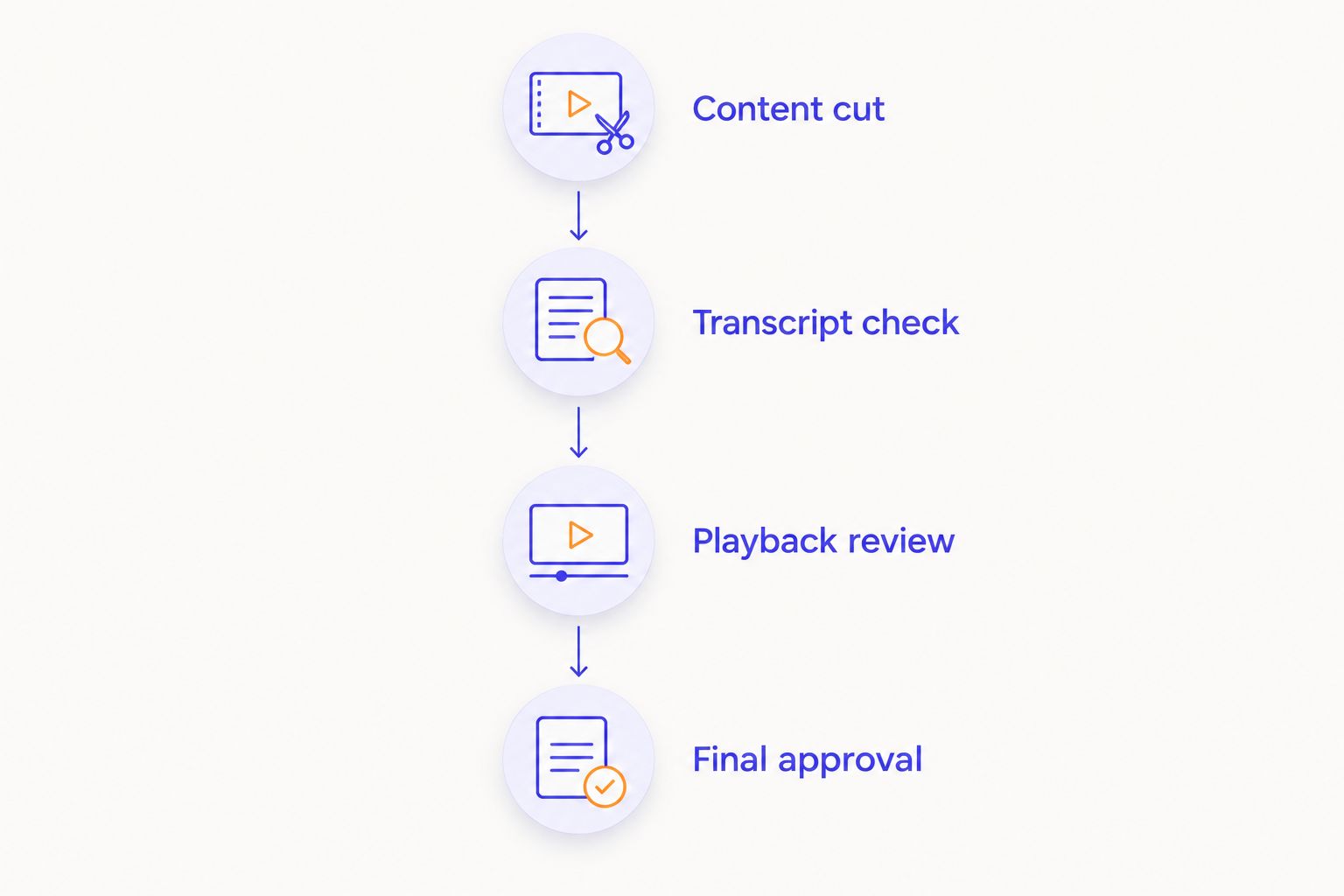
Leave natural pauses where they help the listener understand the answer. Faster is not automatically clearer. An edit should remove distraction without removing the speaker's meaning or rhythm.
When a section includes a factual claim, review the claim separately from the transcript spelling. An accurately transcribed statement can still be wrong. Resolve publication questions before the export stage.
Export and approval
- Confirm the intended destination before exporting. Decide whether you need video, audio, or both. Check the destination's current file requirements rather than assuming one export suits every publishing channel.
- Open Export in Descript and select the output appropriate to that destination. Review the available format and quality settings. Export a review version before treating the episode as approved.
- Play the exported file outside Descript. Check the opening, every major content cut, and the ending. Verify that sound accompanies the picture and that the final sentence is complete.
- Send the review file to the designated approver with a specific request: confirm content accuracy, guest identification, and publication permission. Ask for corrections tied to identifiable passages rather than general reactions.
- Apply approved changes and export again. Label the approved output clearly, retain the project, and keep the source copy. Upload the finished media to your publishing destination only after reviewing that final file.
Expected result: You have an approved output that plays correctly outside the editor and can be distinguished from earlier review versions.
The exported file is the deliverable—not the project preview. Review the exact file you will publish. A correct preview does not replace a check of the exported recording.
Keep your 2026 publishing records simple: source recording, editing project, review notes, and approved output. That record makes later corrections easier to trace without requiring a complicated naming system.
Create clips from the approved episode
A second useful workflow starts after the full episode is approved. Use the edited episode as the reference for shorter excerpts instead of independently rebuilding each clip from the original conversation.
- Find a passage that contains a complete point. Include the question when the answer needs it to make sense.
- Create a separate working version for the excerpt. Preserve the approved full episode so clip-specific changes do not alter it.
- Adjust the framing for the destination. Watch faces, gestures, and any relevant objects after reframing; do not approve the clip from its transcript alone.
- Check captions against the excerpt's actual audio. A caption carried over from an earlier version can include words that no longer appear in the clip.
- Export and review the clip as its own deliverable. Confirm that its opening provides enough context and its ending does not cut off the point.
Best for: Hosts and businesses turning an approved conversation into shorter publishing assets. The benefit is a shared editorial reference; the limitation is that some answers still need additional context to stand alone.
Troubleshooting
Google Drive access is denied
Open the delivery with the Google account that received permission. If access still fails, request access from the folder owner and identify the affected session. Repeatedly downloading through another account does not fix the permission problem.
Descript will not import the recording
Confirm that the download finished, extract any archive, and test the media locally. Check Descript's current supported-file guidance. If conversion is necessary, retain the original and convert a working copy rather than replacing your source.
Transcript cuts produce abrupt speech
Play the join with the surrounding sentence. Restore the removed syllable, breath, or pause, then shorten the passage more carefully. Cutting the correct written words does not guarantee a natural audio boundary.
Separate recordings sound doubled
Check whether overlapping sources contain the same conversation audio. Choose the intended primary audio and disable unwanted duplicates before evaluating the edit. Then verify alignment against a visible spoken phrase; do not assume matching filenames mean matching start points.
The exported episode contains the wrong revision
Compare the exported file with your approval notes and current project. Re-export the correct version, play it locally, and replace the review file with a clearly identified approved output. Tell the publishing owner which file supersedes the earlier one.
Customize your workflow
Build a reusable episode brief before your next Justpushrecord session. Include the audience, opening question, essential topics, pronunciation notes, publication restrictions, and intended outputs. That brief connects the recording plan to the edit without requiring a full script.
For a business show, use the business podcast studio guide to frame the recording decision around your actual use case. Decide who approves the episode and who publishes it before the session begins.
In 2026, keep the handoff explicit: studio recording, Google Drive delivery, local source check, Descript edit, and final approval. Treat these as separate checkpoints. This guide describes a file-based workflow, not an automatic connection between the studio and Descript.
FAQ
How do I move a podcast studio recording to Descript?
Download the recording from its delivery folder, check that it plays locally, and import a working copy into a Descript project. Let transcription finish, edit the conversation, and review the exported file before publishing.
Does Justpushrecord send recordings through Google Drive?
Yes. Justpushrecord provides Google Drive file delivery for its automated podcast studio recordings. Check your delivered folder to identify the files for your session before choosing an editing route.
Does a three-camera studio mean I receive three separate video files?
The camera count alone does not establish the delivery package. Inspect the files you receive and confirm any separate-source requirements before planning camera-angle edits.
Should I import every recording file into Descript?
No. Start with the primary recording that contains the episode you intend to publish. Add separate sources only when the edit requires them, and check for overlapping audio.
Does correcting the transcript fix what a guest said?
No. A text correction does not correct an inaccurate spoken statement in the recording. Review the audio and decide whether the passage needs removal, clarification, or a corrected recording.
Can I make podcast clips from the same Descript project?
Yes, you can use the approved episode as the reference for shorter excerpts. Preserve the full episode, work on a separate version, and review each clip's framing, captions, and context.
What should I check before publishing my Descript export?
Play the exported file outside Descript and check the opening, major edits, audio, and ending. Publish the exact version that received content approval, not an earlier review file.
One last thing
A shorter episode is not automatically a better edit. Removing the question, qualification, or example can leave a clean-sounding answer that means something different from the original conversation.
Before approving your next episode, listen to each substantial cut with its surrounding context. Keep the source recording until the episode and its clips have cleared approval. That single habit protects both editorial accuracy and your ability to fix a mistake.