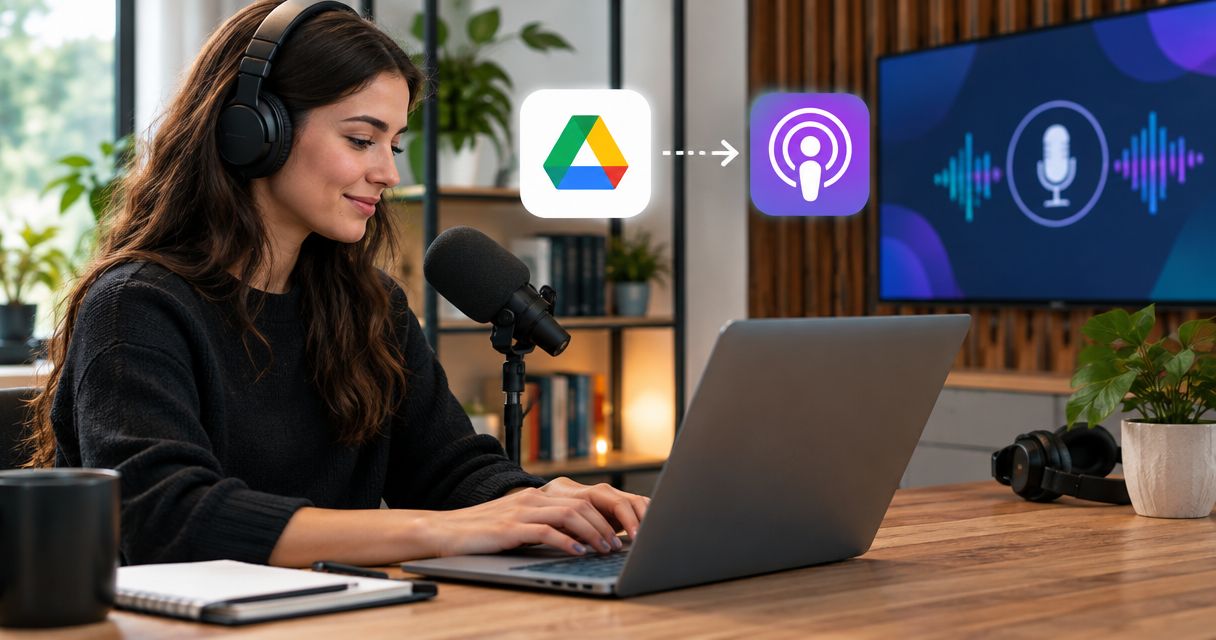
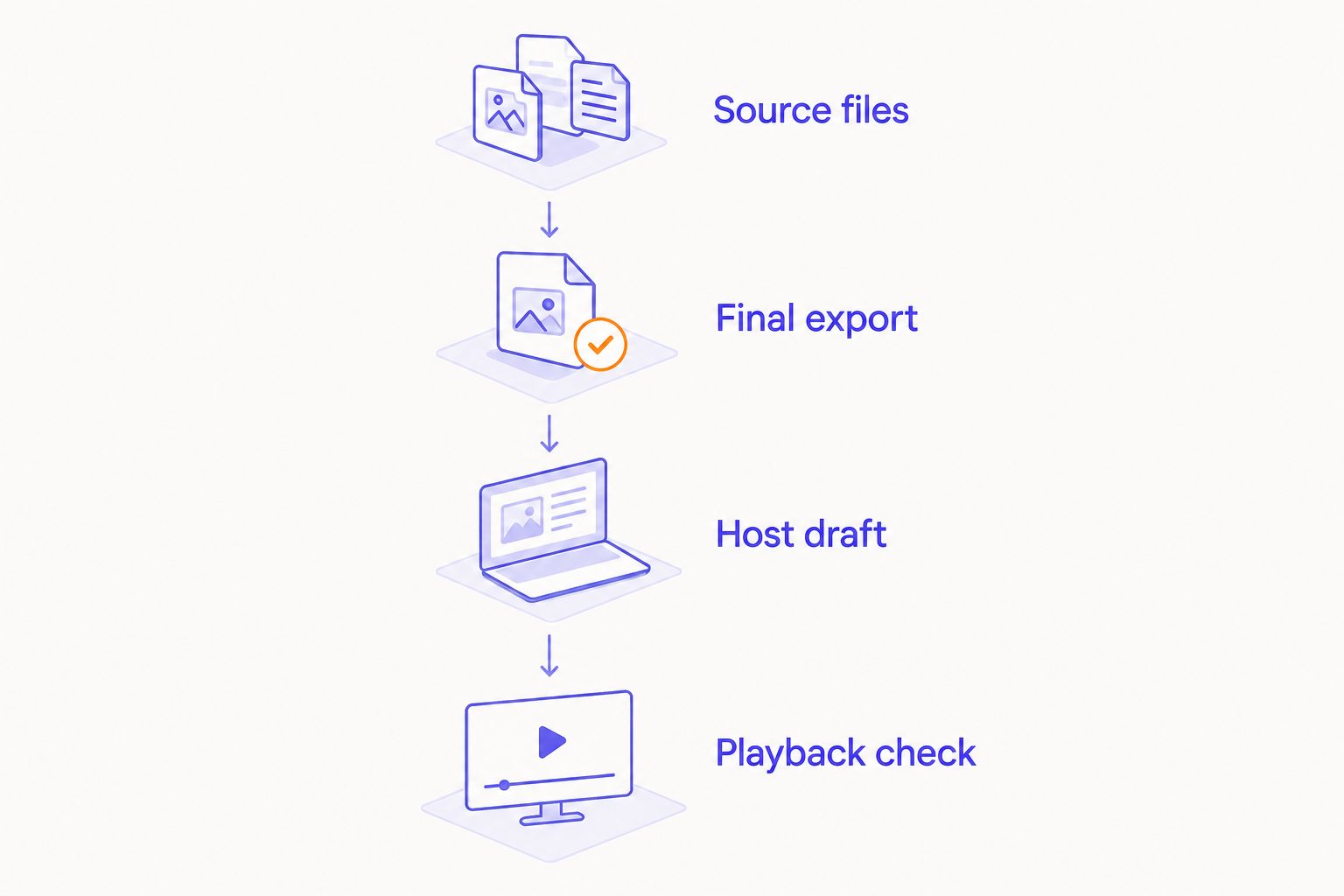
Instead of repeatedly hunting through Google Drive for each recording, use a repeatable handoff: download your Justpushrecord files, prepare the final episode, upload it to your podcast host, and check playback before publishing. This connects your recording workflow to your publishing workflow without treating a shared Drive link as a podcast episode.
- Justpushrecord suits creators who want automated studio recording and Google Drive delivery without a crew.
- For podcast studio google drive to podcast host workflows, upload a finished episode rather than sharing a folder link.
- Keep source recordings separate from the final export you upload to your podcast host.
- Check a private episode draft before publishing; recording, file delivery, and distribution are separate steps.
Why this matters
Google Drive stores your delivered recordings. Your podcast host manages the episode you publish and its podcast feed. Receiving a recording does not publish it.
Justpushrecord is best for podcast hosts, creators, and businesses that want automated studio recording without a crew. Its podcast studios use three cameras and one button, with files delivered through Google Drive. The Justpushrecord website is the starting point for the recording service; the workflow below covers the handoff after delivery.
The benefit is a clear separation between recording and publishing. The trade-off is that you still need to prepare the episode, enter its details, and check the upload. Do not assume studio delivery includes editing, a connection to your hosting account, or automatic publication.
For your 2026 publishing checklist, keep these stages distinct: delivered recording, approved export, uploaded draft, and published episode. That prevents an unfinished recording from becoming the version listeners receive.
Before you start
- Get file access. Open the delivery folder while signed into the Google account that has permission. Confirm that you can download the recordings, not merely view a folder preview.
- Get publishing access. Have access to the correct show in your podcast host, an editor if the recording needs changes, and a local folder for source files and exports. Check the host's accepted media formats before exporting.
- Catch the link gotcha. A Google Drive sharing link is not necessarily a downloadable media address your host accepts. Unless the host explicitly supports that import method, download the file and upload the finished export instead.
You do not need to make the delivery folder public for a normal local upload. Keep access limited to the people handling production.
Choose who owns the final check before anyone starts editing. If an editor prepares the episode and a producer publishes it, name both responsibilities in the episode checklist. A file being present in Drive is not an approval signal.
Source files
The first configuration unit is the source folder. Establish which recording belongs to the episode and preserve it before making changes.
- Open the delivered Google Drive folder. Confirm the session and episode by the file names and contents, rather than choosing the first item displayed.
- Select the required file, open its context menu, and choose Download. If you download several files together, unpack the downloaded archive before opening the recordings in your editor.
- Create a local episode folder with separate source and export folders. Use a recognizable label, such as
2026-guest-topic, without placing private guest information in the name. - Play each source file you intend to use. Check that it opens, contains the expected conversation, and includes the ending.
- Leave the original source files unchanged. Edit a working copy or use an editor that preserves the originals.
Expected result: You have the correct recording locally, you can play it, and your original delivery remains intact.
Keep 2 copies of the source recording: the delivered Drive copy and your downloaded copy. This is a production safeguard, not a reason to delete the delivery folder once an upload succeeds.
If another person needs access, use Google Drive's Share control and add the intended account. Give that person only the access needed for the job. For a download-only handoff, Viewer access keeps editing rights separate; download permissions still depend on the owner's sharing settings.
Final export
The second configuration unit is the finished episode file. A host upload should contain the approved episode, not every file from the recording session.
- Decide whether this destination needs audio or video. Check the selected podcast host's current requirements for that episode type.
- Open the source recording in your editor. Remove unwanted setup conversation, false starts, and material you have decided not to publish.
- Review the whole episode for intelligible speech and unintended omissions. Check edits in context, especially where a sentence was shortened or a section removed.
- Export using a media format the host accepts. Use the host's documented requirements instead of guessing a codec, bitrate, resolution, or file-size limit.
- Give the export a distinct file name. An internal label such as
episode-topic-approvedseparates the publishing file from the raw recording. - Open the exported file outside the editor and listen to it. For video, check the picture and sound together.
Expected result: You have one approved file for the destination, and it plays correctly outside the editing project.
An audio feed needs an audio episode in a format its host accepts. A video destination needs a video export that meets that destination's requirements. A camera recording does not become an audio episode simply because you rename its extension.
Use the host's 2026 documentation when selecting export settings. Requirements belong to the destination, not to Google Drive.
Choose the right publishing action
A new episode and a corrected episode use different actions. Decide which one you are handling before opening an upload form.
| Workflow | Best for | Advantage | Limitation | Required check |
|---|---|---|---|---|
| New episode upload | A conversation that has not been published | Keeps a separate title, description, and release decision | Requires a new episode draft and its details | Confirm that the correct show is selected |
| Existing episode replacement | A correction to an episode already published | Keeps the correction attached to the existing episode record | Replacement controls and downstream update behavior depend on the host | Confirm the episode identity before replacing media |
Use a new episode draft for a new recording. Use the existing episode's replacement process for a correction. Do not create a duplicate episode merely because an export changed.
Host draft
The third configuration unit is the episode draft in your hosting account. The steps are the same in principle across hosts, but button names differ. Follow your host's documented controls for episode creation and media upload; the bold terms below describe actions, not universal interface labels.
- Select the show. Verify the podcast name before entering episode details, particularly if your account manages more than one show.
- Create an episode draft. Start an unpublished episode rather than an immediate release. Keep it unpublished while you upload and review the media.
- Upload the final export. Choose the approved local file, not the source recording or a Google Drive folder shortcut. Let the host finish its upload and any processing before evaluating playback.
- Enter the episode details. Add the title, description, and any episode-specific fields your show uses. Check guest names, links, and claims against the approved material.
- Save the draft. Confirm that the host retains both the uploaded media and the episode details before leaving the page.
Expected result: The correct show contains an unpublished episode with the intended media and complete details.
For Justpushrecord podcast studio files, this is the point where the Google Drive delivery becomes a hosting workflow. Drive remains the source and handoff location. The podcast host becomes the publication destination.
Keep the draft title recognizable to your production team. Your internal file name and public episode title do not have to match, but you should be able to tell which export belongs to which draft without replaying the entire recording.
Playback check
The fourth configuration unit is release control. Check the uploaded version, not just the file on your computer.
- Preview the uploaded episode. Use the host's available draft playback or preview method. Confirm that the media has finished processing.
- Check the beginning, middle, and end. Then review the full uploaded episode before approval. Listen for missing speech, unexpected silence, and an incorrect ending.
- Review the public-facing details. Read the title and description as a listener would. Confirm that the episode details describe the uploaded conversation.
- Choose the release action. Publish immediately or schedule through the host's supported controls. For scheduling, check the displayed date, time, and time zone.
- Verify the published result. Check the host's published episode page and the destinations you use. Confirm playback and metadata rather than assuming every destination has updated at once.
Expected result: The episode is published or scheduled intentionally, with the correct recording and details.
Keep this 2026 release check in the same place as the episode's approval notes. A successful upload confirms file transfer. It does not confirm editorial approval or successful playback.
Replace an episode when the export changes
Use this second workflow when you correct an episode that already exists. Examples include removing an unintended section or fixing an export that cut off the ending.
- Prepare and review the corrected export. Keep the previous export until the replacement is verified.
- Open the existing episode in the podcast host. Match its title and episode identity before changing anything.
- Use the host's documented media-replacement process. Do not delete the episode or create another feed entry unless that is your intended publishing decision.
- Check whether the host requires another save or publication action after replacement. Confirm the corrected media through its available preview or playback controls.
- Review the host's published episode and relevant listening destinations. Already downloaded copies are not the same as newly retrieved media.
Expected result: The existing episode record uses the corrected media, without an unintended duplicate release.
Editing or replacing a file in Google Drive does not, by itself, update the copy uploaded to your podcast host. Treat the corrected export as a new handoff.
For recurring production in 2026, add a replacement note to your checklist: what changed, which file was approved, and who verified the hosted version. That gives the next producer a usable record.
Troubleshooting
Google Drive opens, but the file will not download
Confirm that you are signed into the intended Google account. Ask the owner to check your permission and whether downloading is disabled for viewers. Do not change General access to public just to work around a permission problem.
The podcast host rejects the Drive link
Download the recording and upload the approved export through the host's normal media-upload process. If you want link-based import, first confirm that the host supports Google Drive links and follow its documented requirements.
The upload fails or the host rejects the file
Check the actual export format and the host's media limits. Renaming a file extension does not convert its contents. Re-export through your editor with supported settings, verify local playback, and retry the upload.
The wrong recording plays in the draft
Compare the draft's media with the approved export. Replace the draft upload using the host's supported controls, then replay the uploaded version. Do not publish while the file identity is uncertain.
A correction is visible in Drive but not in the published episode
Replace the hosted media through the existing episode's controls. Confirm the host's version first, then check listening destinations. Follow the host's update guidance; changing a Drive file is not a replacement action inside the podcast host.
Customize your workflow
Standardize the handoff before adding automation. Use the same folder structure, approval rule, and publishing checklist for each episode. That removes repeated decisions without granting software permission to publish unfinished material.
A useful handoff record contains the episode title, source location, approved export name, publishing owner, and intended release date. Keep the approval separate from the file's presence in a folder. Uploading a file is not the same as authorizing its release.
If your selected host offers a documented import feature or API, evaluate that specific connection next. Confirm how it authenticates with Drive, retrieves the actual media, handles repeat runs, and creates unpublished drafts. Reject a setup that cannot distinguish an approved export from a source recording.
Automation's advantage is fewer repeated transfer actions. Its limitation is that a wrong file selection can be repeated automatically. Keep human approval and playback checks in the workflow, even when file transfer becomes automatic.
FAQ
How do I connect podcast studio Google Drive files to my podcast host?
Download the delivered recording, prepare a final export in a format your host accepts, and upload it to an unpublished episode draft. Check the hosted playback and episode details before publishing.
Can I paste a Google Drive link into my podcast host?
Only use a Google Drive link if your podcast host explicitly supports that import method. Otherwise, download the file and upload the finished export through the host's media-upload controls.
Does Justpushrecord publish my podcast when the files arrive?
Google Drive delivery is not podcast publication. Justpushrecord provides automated studio recording and file delivery; use your podcast host to upload, review, and release the episode.
Do I need to make my Google Drive folder public?
No, a normal download-and-upload workflow does not require a public Drive folder. Give the intended production accounts access and confirm that downloading is permitted.
Should I upload the audio or the video recording?
Upload the approved media type that your chosen destination supports. Prepare an audio export for an audio episode and a supported video export for a video destination.
Will changing the Google Drive file update my published episode?
Changing a Drive file does not update a separately uploaded episode. Use your podcast host's documented replacement process and check the corrected hosted media.
Can I automate this workflow without publishing the wrong file?
Use automation only when the connection can identify approved exports and create unpublished drafts. Keep a separate approval decision and verify playback before release.
One last thing
The final file check belongs after upload. A recording can play correctly on your computer while the draft contains a different export. Check the host's copy before release, and make that the final gate in your 2026 publishing checklist.