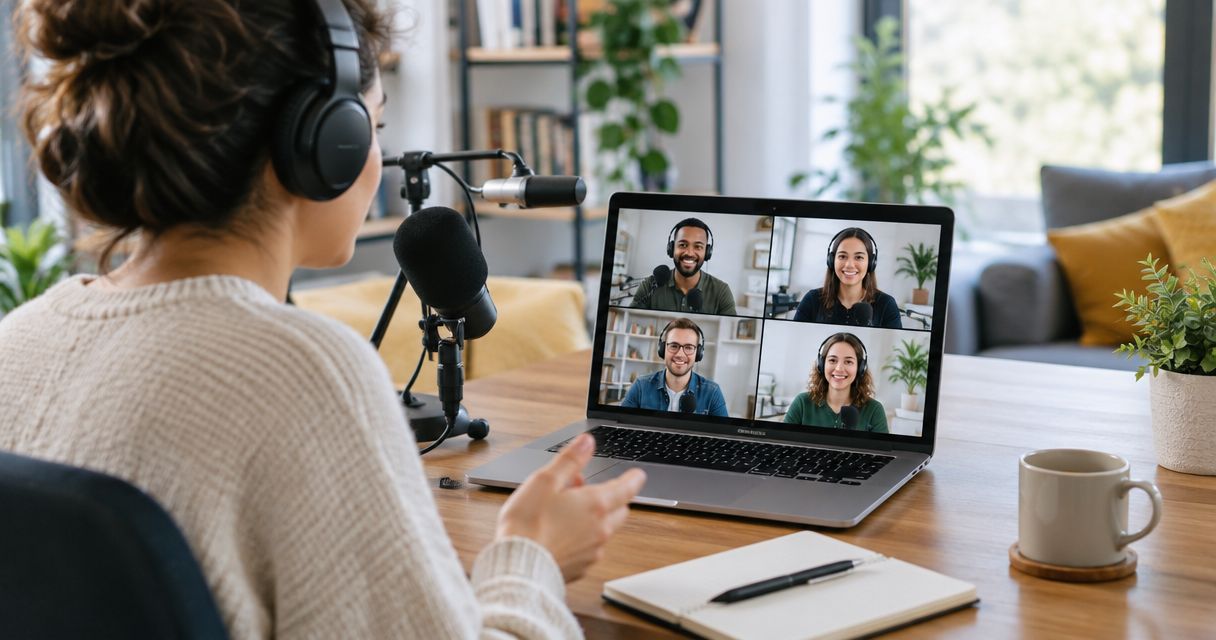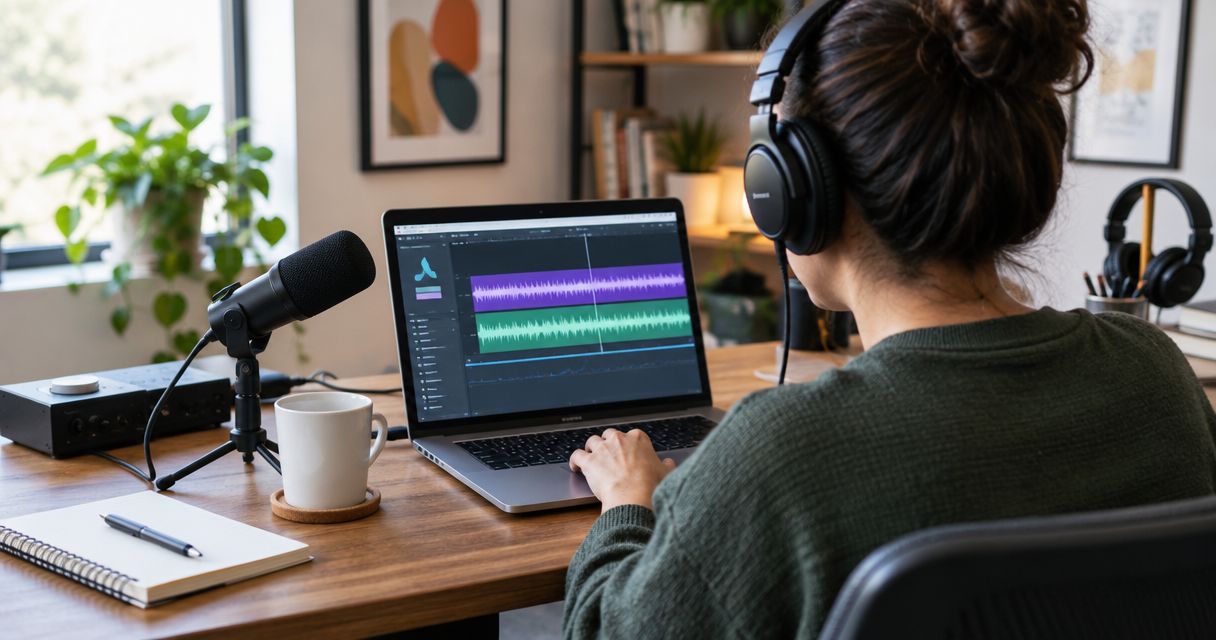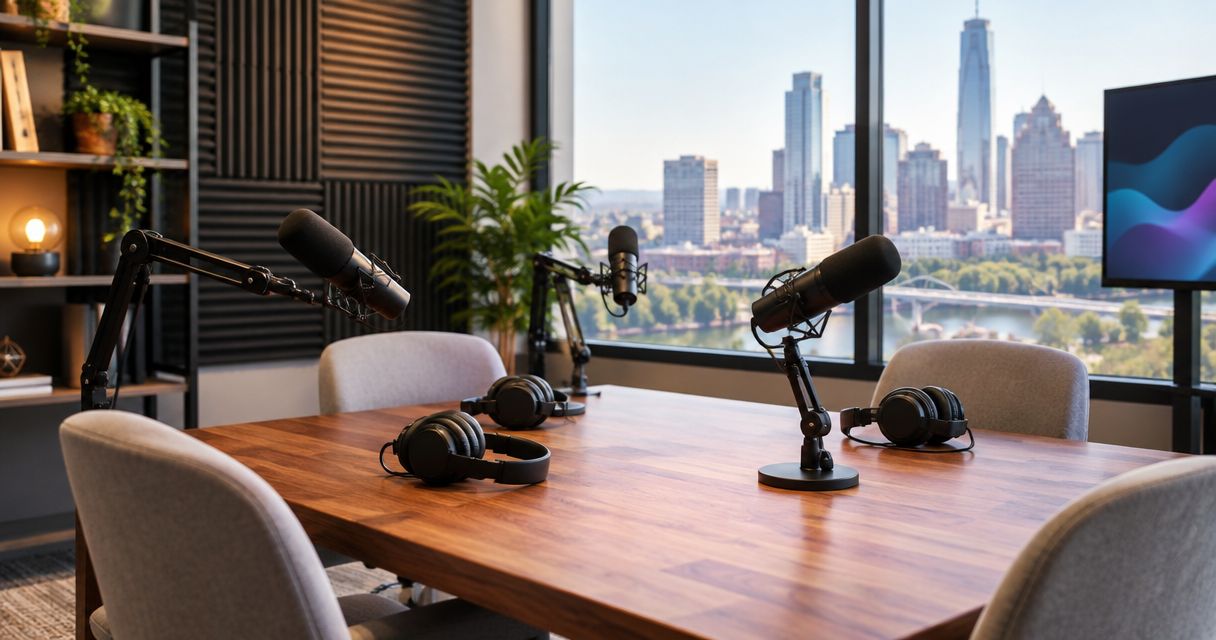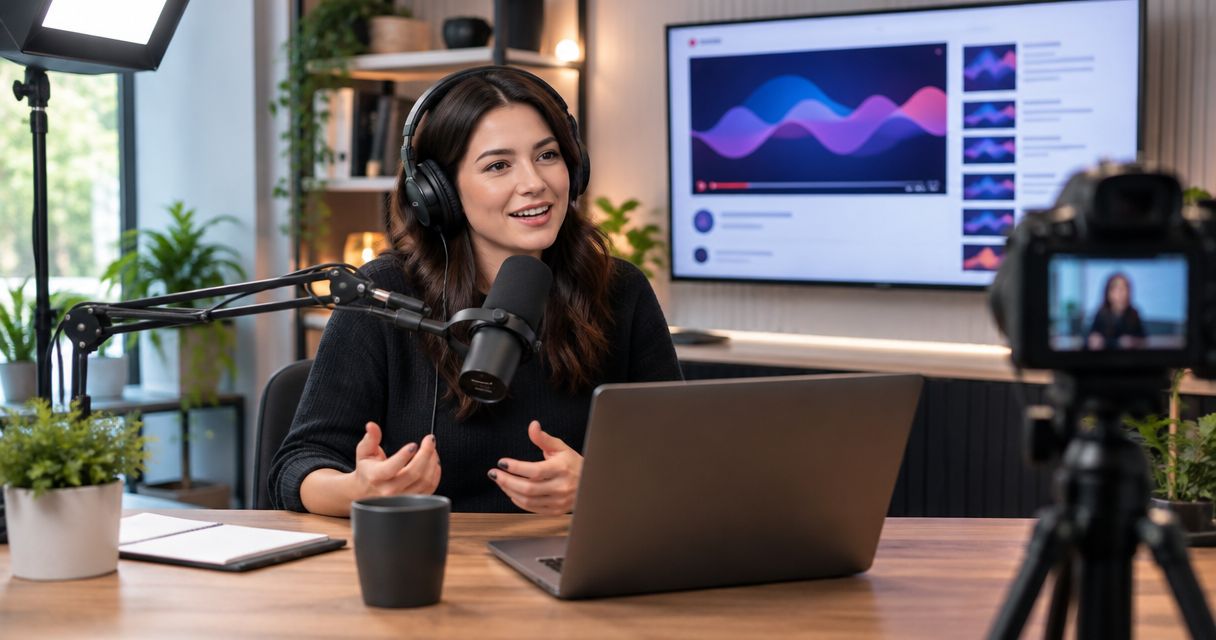
Instead of rebuilding your publishing process after every session, use this 2026 podcast recording to YouTube upload workflow: record at Justpushrecord, download your Google Drive files, prepare the episode, and publish through YouTube Studio. The studio handles automated recording; you handle the edit, channel settings, and release.
- Justpushrecord suits podcast creators who want one-button, three-camera recording without a crew.
- Podcast recording to YouTube upload follows Google Drive delivery, video editing, channel checks, and publication.
- Verify your YouTube account before uploading episodes longer than 15 minutes.
- Upload privately, review the processed video, then publish or schedule the episode.
Why this matters
Justpushrecord is best for podcast creators who want automated, three-camera studio recording without a crew. Its podcast recording workflow delivers files through Google Drive. That removes crew coordination, but it does not replace editing or YouTube publishing.
Keep those responsibilities separate. A successful recording is not yet a finished episode, and a completed upload is not yet a checked release. For your 2026 publishing process, assign someone to review the final video and someone to approve publication; one person can fill both roles.
Start with Justpushrecord for the recording stage. Then use the steps below to carry the files through to your channel without confusing source footage, draft edits, and published episodes.
Before you start
- Confirm file access. Use the Google account that can open the delivered Google Drive folder. Have enough local storage for the source files and your finished export, plus a video editor if the recording needs changes.
- Confirm channel access. Sign into the Google account with permission to upload to the intended YouTube channel. Prepare the episode title, description, thumbnail, guest details, and permission to publish the recording.
- Verify before a long upload. YouTube requires account verification for uploads longer than 15 minutes. Complete verification first; discovering that restriction after preparing a long episode interrupts the publishing workflow.
Also check your thumbnail permissions before designing the release package. Custom thumbnail uploads require account verification. Neither access to Google Drive nor access to a shared channel automatically confirms that the channel has completed this step.
Recording and file handoff
The Justpushrecord podcast recording setup uses one button and three cameras. Follow the instructions provided for your session rather than treating this guide as a substitute for the studio's controls.
- Prepare the episode outline. Write the opening, discussion topics, guest introduction, and closing action. Mark names or statements that need accuracy checks. Keep notes readable enough to use without breaking the conversation.
- Record the session. Follow the studio instructions to begin and finish recording. Do not assume that ending your conversation also stops the recording. Confirm that you completed the required stop procedure.
- Open the delivery folder. Sign into Google Drive with the account that has access. Check that the files correspond to the session you intend to publish.
- Download the source files. In Google Drive, right-click the relevant file and select Download. If you download several files together, extract the downloaded archive before importing its contents into your editor.
- Create separate working folders. Keep source recordings, working edits, and final exports apart. Use a consistent episode identifier so an editor cannot mistake an earlier draft for the release file.
For example, include the show name, episode topic, and 2026 recording date in your folder naming. This is an organizational choice, not a studio delivery format. Keep the delivered filenames intact in your source folder and rename working copies only when necessary.
Expected result: You can open the correct source files locally, and the originals remain separate from your editing project.
Do not assume that every delivered file is ready to upload. Inspect what you received. Separate camera recordings need an editing decision; a finished episode still needs a playback review. Confirm the contents before choosing the next step.
Episode edit and export
Your editing task is to create a clear, watchable episode. Three-camera recording gives you camera material to work with; it does not establish which file contains a finished camera-switching edit.
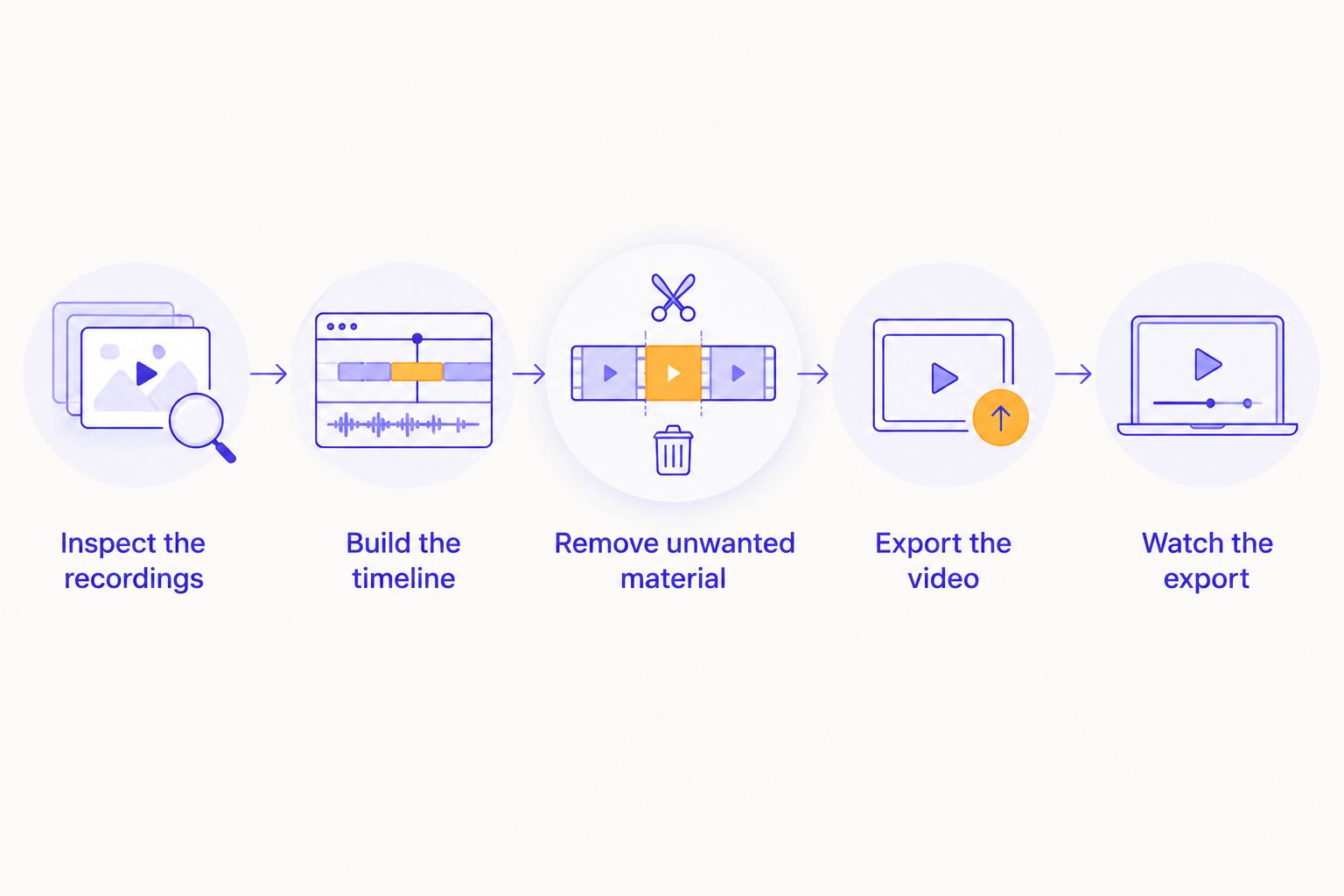
- Inspect the recordings. Play the beginning, a section from the middle, and the ending of each relevant file. Check speech, camera framing, and whether the file covers the expected session.
- Build the episode timeline. Import the required video and audio into your editor. If the files are separate, align them before cutting. Keep the original recordings unchanged.
- Remove unwanted material. Cut setup chatter, private remarks, false starts, and material you do not have permission to publish. Keep intentional pauses when they help the conversation make sense.
- Check camera changes and audio. Use camera cuts to clarify who is speaking. Listen for abrupt changes in loudness, missing words, and audio that no longer matches the picture after an edit.
- Export the finished video. Use a YouTube-compatible format. MP4 with H.264 video and AAC audio is a standard choice. Match the source frame rate rather than changing it without a reason.
- Watch the export. Review the exported file, not only the editor's preview. Confirm that the opening, closing, sound, and picture survived the export.
For a conventional landscape episode, 16:9 is a standard presentation. A 1920 × 1080 export is a standard Full HD option when the source supports it. Do not upscale solely to make the resolution label larger; export decisions should match the material you actually have.
Expected result: You have one reviewed release file with a clear name, distinct from the source recordings and draft exports.
Keep a brief record of the final filename and approval status. If someone requests a correction, update the export and identify the new release file clearly. Do not leave two different files both marked final.
YouTube upload configuration
YouTube Studio is the publishing interface for this workflow. Google Drive stores the delivered recordings; it does not publish a standard video episode to your channel through a shared folder link.
- Open the correct channel. Sign into YouTube Studio. Check the channel identity before uploading, especially if your account manages more than one channel.
- Start the upload. Select Create, then Upload videos. Choose Select files and select the reviewed video export from your computer.
- Complete the episode information. On Details, enter Title and Description. Make the title describe the actual conversation. Put the episode's subject and viewer benefit near the beginning of the description.
- Add the release assets. Upload your thumbnail if the channel has access to custom thumbnails. Add the episode to the appropriate playlist when one exists. Confirm that the thumbnail represents the episode rather than promising a different topic.
- Set the audience accurately. Under Audience, answer whether the video is made for kids. A video being suitable for general audiences does not automatically make it children's content.
- Continue through review. Select Next to reach Video elements, then Checks. Add subtitles, cards, or an end screen where useful and supported. Review any issues before continuing to Visibility.
Do not put confidential production links in the description. A Google Drive source folder belongs in your production handoff, not automatically in your public episode notes. Link only to materials you intend viewers to access.
Expected result: The episode is uploaded to the intended channel with accurate metadata, audience settings, and a completed review of the upload checks.
Keep the page open until the upload finishes. Upload completion and video processing are separate stages. The file reaching YouTube does not mean every playback resolution is ready.
Visibility and release checks
Use a private upload as the review stage, not as the release itself. This gives you a chance to inspect YouTube's processed version before subscribers or visitors encounter it.
- Save privately. Under Visibility, select Private, then Save. Do not select Public simply to obtain a review link.
- Review playback in YouTube. Check the processed video while signed into an account with access. Confirm the beginning, camera changes, speech synchronization, and ending. Check that the intended playback quality is ready.
- Review the viewer-facing information. Read the title and description. Confirm guest names, thumbnail text, playlist assignment, and any subtitles you added.
- Choose the release method. For an immediate release, select Public and Publish. For a planned release, use Schedule and confirm the date, time, and time zone before saving the schedule.
- Check the released watch page. After publication, open the video as a viewer. Confirm that the public page shows the correct episode and that the description contains only intended material.
Expected result: The episode is either public or scheduled intentionally, with its processed video and release information checked.
If another person needs to review the episode, choose access deliberately. Private videos require authorized access. Unlisted videos are accessible to anyone who has the link, and recipients can pass that link on. Unlisted is convenient for review, but it is not confidential file storage.
Publish clips from the same recording
A second workflow uses the episode recording to create standalone clips. For a 2026 release plan, give each clip its own subject, opening, and ending rather than treating every excerpt as a miniature full episode.
These are publishing options, not different studio products:
| Output | Best for | Advantage | Trade-off |
|---|---|---|---|
| Full episode | Viewers seeking the complete conversation | Preserves context and the full interview | Requires sustained attention and a complete episode review |
| Landscape clip | Viewers interested in one specific question | Isolates a useful answer while retaining landscape framing | Needs its own title and enough context to stand alone |
| Vertical clip | Viewers watching in a vertical format | Uses framing suited to a vertical screen | Requires reframing and a separate check of faces and text |
For each clip, duplicate the editing sequence rather than cutting pieces out of your only full-episode project. Select a complete idea, remove references that require missing context, and export a separate file.
Then repeat the YouTube upload and visibility checks. Give the clip a distinct title and thumbnail where applicable. If the full episode is public, add a clear reference to it in the clip's description.
Do not publish a clip that changes the speaker's meaning. Watch the surrounding conversation before approving an excerpt, especially when the guest is discussing a qualification, exception, or sensitive claim.
Troubleshooting
Google Drive denies access
Check which Google account is signed in. Open the delivery folder using the account granted access. If that account still cannot open it, ask the sender to confirm sharing permissions rather than asking them to make the folder public.
YouTube rejects an episode longer than 15 minutes
Complete account verification for the channel receiving the upload. Then retry the upload. Verify the destination channel specifically; checking a different channel does not fix the restriction.
YouTube shows a lower-quality picture
Check whether higher-resolution processing has finished. Compare playback with your local export. If the local file also looks wrong, correct the export; waiting for YouTube processing cannot restore detail missing from the uploaded file.
Speech no longer matches the picture
Review the local export first. If the mismatch exists there, correct audio alignment in the editor and export again. Do not publish a known synchronization error and expect YouTube to repair it.
Upload checks flag copyrighted material
Review the claim details in Checks. Confirm your rights to the flagged material. Remove or replace material you cannot use, or follow the dispute process only when you have a valid basis. Completing an upload does not establish permission to publish.
Customize your workflow
Create a reusable release checklist for your 2026 episodes. Include file access, source backup, edit approval, export review, channel identity, metadata, upload checks, visibility, and final watch-page review.
Assign responsibility at each handoff. The recording owner confirms the files; the editor confirms the export; the publisher confirms the channel and release settings. You can perform all those jobs yourself, but keep the checks separate.
Automate administrative tasks only after the manual path works. A reminder or task template can track release preparation. It should not mark an episode approved merely because a new recording file appeared in Google Drive.
FAQ
How do I get a studio podcast recording onto YouTube?
Download the delivered recording files, prepare and review a finished video, then upload it through YouTube Studio. Complete the episode details, audience settings, checks, and visibility settings before publishing.
Does Justpushrecord automatically upload my podcast to YouTube?
This workflow uses Google Drive delivery followed by a separate YouTube Studio upload. The automated studio recording setup does not establish an automatic YouTube publishing connection.
Can I upload a Google Drive link instead of a video file?
No, a shared Google Drive link is not a video-file upload in YouTube Studio. Download the video or finished export to your computer and select that file during upload.
Why can't I upload a podcast longer than 15 minutes?
YouTube requires account verification for uploads longer than 15 minutes. Complete verification for the destination channel before retrying the upload.
Should I publish my podcast as private or unlisted first?
Use Private for controlled review and Unlisted when reviewers need link-based access. Anyone with an unlisted link can share it, so do not treat an unlisted video as confidential.
Do I need to edit all three camera recordings?
Inspect the delivered files before deciding what needs editing. If the camera recordings are separate, you need to assemble the episode; if a finished video is present, review it before uploading.
Can I make YouTube clips from the same podcast recording?
Yes, export separate clips from the recording and upload each as its own video. Give each clip enough context to preserve the speaker's meaning and review its framing before publication.
One last thing
Check the processed upload, not just the source file. Your 2026 release checklist should end on the YouTube watch page. That is where you confirm the version viewers actually receive, including its picture, sound, title, and description.
Keep the original recording and approved export after publication. A public watch page is a distribution destination, not your production backup.