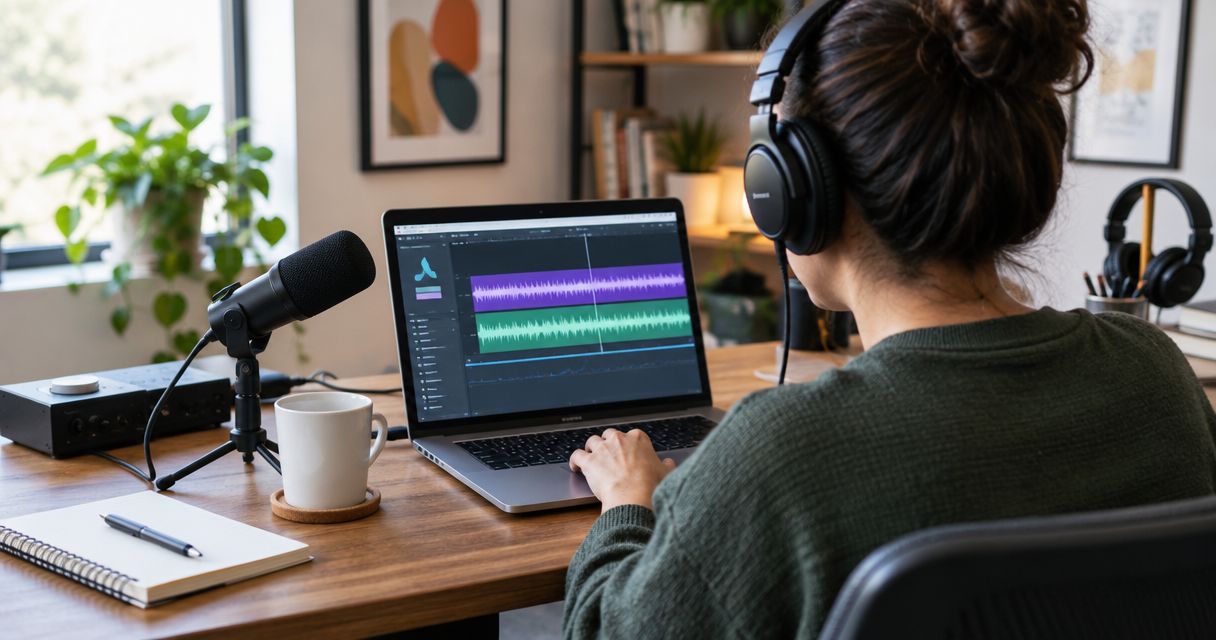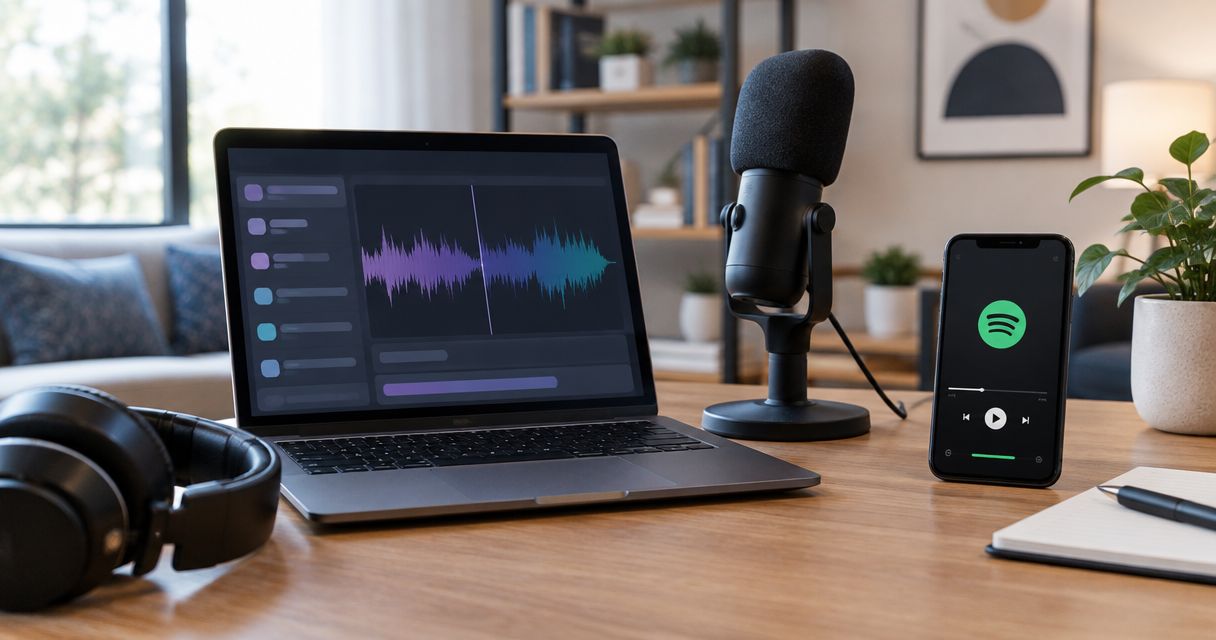
Instead of uploading the same episode separately to Spotify after every recording, publish your approved audio through a podcast host connected to Spotify by RSS. To publish podcast recording to Spotify for Podcasters, now called Spotify for Creators, start with your delivered Google Drive files; studio recording and automatic episode distribution are separate steps.
- To publish podcast recording to Spotify for Podcasters, use Spotify for Creators or a connected podcast host.
- Justpushrecord suits podcast hosts who want one-button, three-camera recording without a crew.
- Google Drive delivery does not automatically publish an episode on Spotify.
- RSS distribution automates delivery after host publication, not editing or approval.
Why this matters
Justpushrecord provides self-serve, automated podcast recording studios with three cameras, one-button recording, and Google Drive file delivery. Those features simplify recording. They do not turn a delivered recording into an approved, published episode.
Justpushrecord is best for podcast hosts who want three-camera studio recording without a crew. You still need a publishing workflow that separates source files from finished episodes.
For your 2026 publishing workflow, choose where the final episode lives before connecting anything. A show hosted on Spotify follows a different upload path from a show hosted elsewhere and distributed to Spotify through RSS.
The useful automation is downstream of approval. Publish once at your host, then let the connected feed distribute the audio episode. Do not treat a new file in Google Drive as permission to publish it.
Before you start
- Confirm access. You need access to the delivered Google Drive files and publishing permission for your podcast. For an externally hosted show, you also need its RSS feed and control of the email used to verify ownership.
- Prepare the release materials. Have the final audio or video, episode title, description, artwork where required, and your intended publication date. Confirm permission to publish guest contributions and any included music.
- Check the hidden dependency. A Google Drive sharing link is not a podcast RSS feed or a dependable podcast media-hosting endpoint. Download the recording and upload the finished export to your podcast host; do not paste a Drive folder link into Spotify's RSS submission process.
Keep one authoritative publishing location. If your show already has a podcast host, connect that existing show rather than creating another show with the same name. Separate show records can split your episode history and confuse listeners.
Choose your publishing route
These are two publishing routes, not two interchangeable upload buttons. Select the route that matches your existing show.
| Route | Best for | What happens automatically | Advantage | Limitation |
|---|---|---|---|---|
| Spotify-hosted show | Creators who want to manage episodes in Spotify for Creators | An episode scheduled in Spotify publishes at its selected release time | Upload and manage the episode in the same publishing account | Google Drive delivery still requires a separate preparation and upload step |
| External host with Spotify RSS distribution | Creators who already publish through another podcast host | Spotify receives published audio episodes through the connected RSS feed | Publish audio at the existing host instead of uploading it again to Spotify | Feed distribution does not turn a Drive recording into an edited episode or deliver a Spotify video episode |
For an existing externally hosted show, keep the external host as the source of truth. For a Spotify-hosted show, use Spotify for Creators to upload the finished episode and choose its release timing.
This distinction also matters for video. An audio feed and a video upload are different distribution paths. Decide whether you are publishing an audio episode, a Spotify video episode, or both before exporting.
Recording files and release assets
Retrieve the delivered recording
- Open the delivered folder in Google Drive using the account that has access.
- Select the source file you need. Use Download from the file's menu to save a local copy.
- Open the downloaded file outside Google Drive. Check that it contains the intended recording and plays through the sections you plan to use.
- Keep the source file unchanged. Work from a separate copy when editing.
Expected result: You have a playable local source file and an untouched original. You have not published anything.
Google Drive is the handoff point in the Justpushrecord podcast recording workflow. Your podcast host is the publishing point. Keeping those roles separate prevents a raw recording from becoming a public episode by accident.
Prepare the final episode
- Edit the recording into the episode you intend listeners to hear. Remove abandoned starts, private conversation, and anything you do not have permission to publish.
- Export audio for an audio feed. Export video separately when you intend to publish a video episode.
- Give the finished export a clear filename that identifies the show and episode. Avoid using the same filename for both a draft and an approved release.
- Write the episode title and description. Include the guest's correct name, the episode's subject, and any disclosures the episode needs.
- Play the finished export before uploading. Check the beginning, transitions, and ending, then review the full episode before approving publication.
Expected result: You have a finished media file and matching episode information. The final export, not the source recording, is ready for upload.
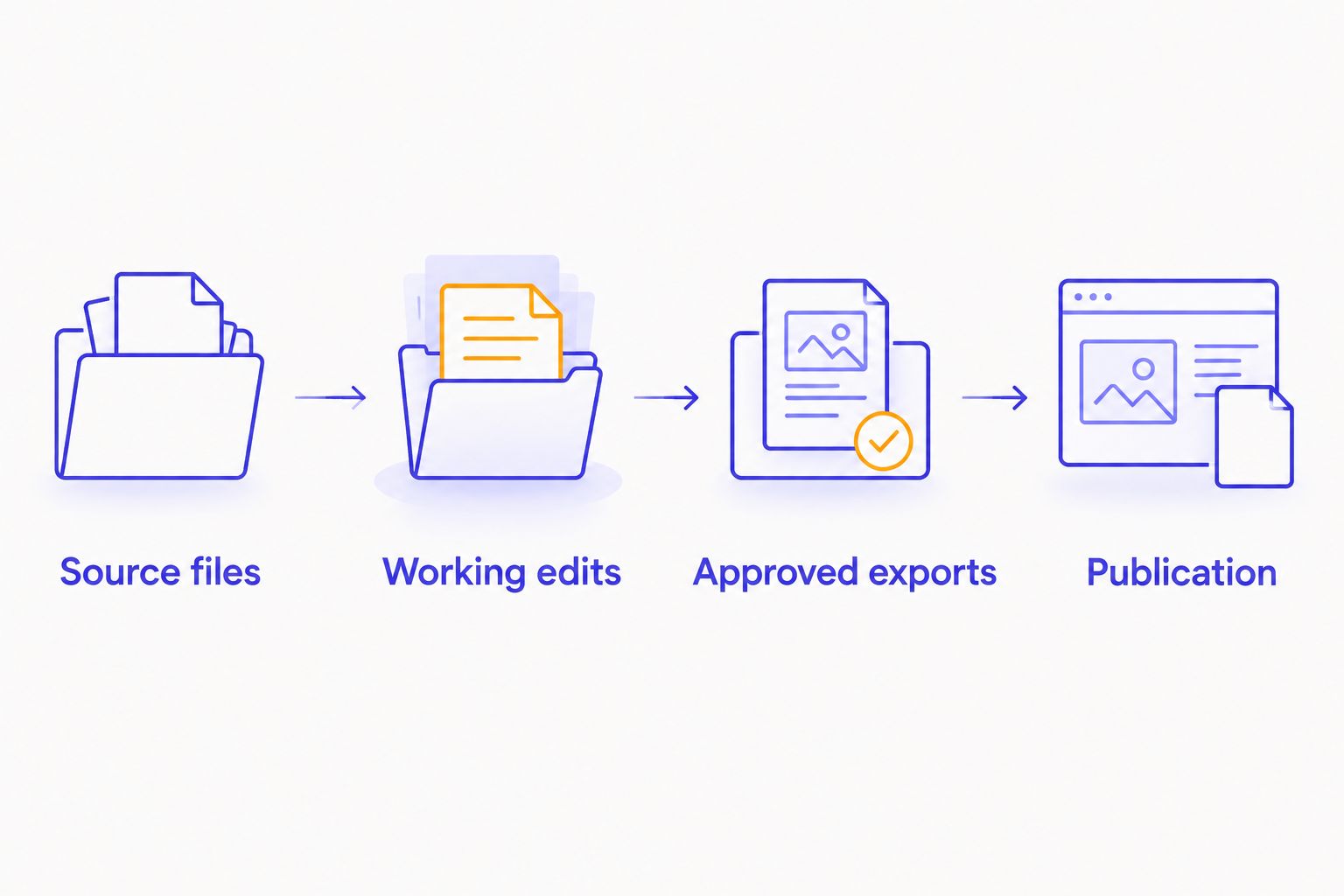
Use a simple folder structure for your 2026 episodes: Source files, Working edits, and Approved exports. These are folders you create for your workflow, not studio-delivery features.
A file entering Approved exports should mean someone has checked the content. It should not mean an editing application merely finished exporting.
Spotify publishing configuration
Route A: A Spotify-hosted show
- Sign in to Spotify for Creators and open the correct show. Check the show's name before adding an episode.
- Open New episode and select the finished media file for upload. Do not select an entire source folder or an unfinished recording.
- Enter the episode Title and Description. Check them against your release notes rather than copying an old episode unchanged.
- Complete the applicable episode settings, including explicit-content labeling when needed. Review the uploaded media before proceeding.
- Choose immediate publication or scheduling in the publication controls. Check the release date and time zone before confirming.
- After publication, open the public episode in Spotify. Check the title, description, playback, and episode identity.
Expected result: The correct episode appears on the intended Spotify show, either after immediate publication or at its scheduled release time.
Scheduling removes the need to be online at release time. It does not remove the upload, processing, or approval steps. For a 2026 release calendar, prepare the episode first and schedule only after the uploaded media passes review.
For a video episode, inspect the video as well as the sound. An audio check will not catch an incorrect opening frame, an unwanted visual segment, or an export with the wrong framing.
Route B: An externally hosted show
- Sign in to the podcast host that already manages your show. Find the show's podcast RSS feed, not its public website address.
- In Spotify for Creators, use the process for adding or claiming an existing podcast. Submit the RSS feed and complete ownership verification.
- Confirm that the connected Spotify show matches your existing show. Check the title and previously published episodes.
- Create the new episode at your external host. Upload the approved audio and add the episode title, description, and applicable settings.
- Publish or schedule the episode at that host. Confirm that the published episode appears in the host's RSS feed.
- Check Spotify after feed ingestion. Verify the public episode rather than assuming a successful host upload proves Spotify publication.
Expected result: Spotify receives the published audio episode from the connected host's RSS feed. You do not upload the same audio episode separately to Spotify.
RSS distribution is the automatic part of this workflow. Editing, approval, and host publication remain separate unless your chosen host provides a supported way to automate them.
Do not create a second Spotify-hosted version just to bypass a feed problem. Repair the existing connection first. A duplicate show creates another publishing destination to manage without fixing the original issue.
Release controls and validation
Set the approval gate
- Assign responsibility for approving the final file. For a solo show, that responsibility still needs a defined place in your process.
- Keep drafts out of the folder used for approved exports. Do not let filenames alone determine whether an episode is ready.
- Record the destination show, media filename, episode title, and release date together in your release notes.
- Run a private playback check before publication. Use the host's draft or preview functions where provided.
- Check the public Spotify episode after release and record that the check is complete.
Expected result: Every published episode has an approved file, a known destination, and a completed playback check.
Start your 2026 setup with 1 approved episode before applying the workflow to a batch. That is a validation recommendation, not a platform limit. A successful test should prove file access, upload, episode information, release timing, and public playback.
If you add an automation service later, confirm the exact actions supported by your host. A notification or file-copy action is not a publish action. Never assume that connecting two accounts supplies functionality neither account documents.
Second variant: Schedule episodes from an approved batch
Batch recording changes how you prepare episodes, not how Spotify receives them. Use the same approval gate for every recording in the batch.
For a Spotify-hosted show, upload each approved episode and schedule its individual release. For an externally hosted show, schedule each episode at that host and let the connected RSS feed handle Spotify distribution after publication.
Best for: Hosts who record ahead and want a regular release calendar without returning to the publishing account on every release day.
The advantage is clear separation between recording day and release day. The limitation is equally clear: you still need to prepare and approve each episode. Scheduling unfinished files only moves the mistake to a later date.
Updating a Google Drive file is not an instruction to replace a published Spotify episode. If you discover an error, correct the media through the publishing host's supported replacement process. Check the public episode again after the update.
Keep the approved replacement distinct from the previous export. That gives you a clear record of which file belongs to the current release.
Troubleshooting
Google Drive access works for one person but not another
The delivery account and the publishing account do not automatically share file permissions. Ask the folder owner to grant access to the person preparing the episode, then test access while signed in to that person's account.
Do not make the entire recording folder public to solve a permissions problem. Private source recordings should remain separate from published media.
Spotify rejects the file or cannot finish processing it
Check the platform's current supported file requirements. Re-export the finished episode in a supported format and confirm that the local file plays correctly before uploading again.
Changing a filename extension does not convert the media. Export from your editing application rather than renaming the suffix.
The externally hosted episode is missing from Spotify
Check whether the episode is actually published, not saved as a draft or scheduled for later. Then inspect the host's RSS feed and confirm that Spotify is connected to that feed.
If the episode is in the feed but missing from Spotify, use the host's distribution diagnostics and Spotify's support process. Repeated uploads to different show records do not repair the connection.
The scheduled episode publishes at the wrong time
Check the publishing account's time-zone setting and the episode's scheduled date. Keep the intended time zone in your release notes, especially when the host and producer work in different locations.
For your 2026 calendar, verify the displayed release time on each scheduled episode. Do not infer it from a previous episode's settings.
The audio appears, but the video does not
An audio RSS episode does not carry your studio video into Spotify's video publishing workflow. Use the video upload process available for your show in Spotify for Creators.
Keep the audio and video aligned. Check that they represent the same approved episode rather than separate edits with different introductions or endings.
Customize your workflow
Start by improving the handoff, not by adding more connections. Keep release notes beside the approved export. Assign a clear owner for upload and another explicit checkpoint for public playback, even when one person performs both tasks.
The Google Drive-to-podcast-host workflow is the next guide to use when organizing the delivery-to-upload stage. That stage determines whether your host receives the correct file.
The Justpushrecord podcast recording workflow handles studio capture and Drive delivery. Build your publishing controls around that handoff. Add notifications, file organization, or supported host automation only after the basic release path works.
Automate movement; keep approval explicit. That rule applies whether you publish alone or work with an editor.
FAQ
Can my studio recording publish automatically to Spotify from Google Drive?
Google Drive delivery alone does not publish your recording to Spotify. Prepare the finished episode, upload it to your podcast host, and use a connected RSS feed for automatic audio distribution after publication.
Is Spotify for Podcasters still the right place to upload my episode?
Spotify for Podcasters is now called Spotify for Creators. Use Spotify for Creators for a Spotify-hosted show; publish at your existing host when Spotify receives your show through RSS.
What is the best way to publish an existing podcast to Spotify?
Keep your existing podcast host and connect its RSS feed to Spotify. That keeps one authoritative audio publishing location instead of creating a second copy of the show.
Can I publish the video from a three-camera recording through RSS?
An audio podcast RSS feed does not publish a Spotify video episode. Prepare the approved video export and use Spotify for Creators' video upload process for your show.
Do I need to upload each audio episode to Spotify separately?
No, not when Spotify is connected to the RSS feed from your external podcast host. Publish the episode at that host and verify that Spotify receives it.
Can I schedule podcast episodes before release day?
Yes, schedule approved episodes through the publishing controls provided by your host. Check the release date and time zone before confirming, then verify public playback after release.
Will replacing a Google Drive recording update my published episode?
No, replacing a source recording in Google Drive is not a published-episode update. Replace the media through your podcast host's supported process and check the public episode afterward.
One last thing
A successful upload is not a successful release. The final check happens on the public Spotify episode, where you can confirm that listeners get the intended file and information.
For your first automated distribution test, check the opening, the ending, and the episode description on Spotify itself. Keep that check in every release checklist. Automation should remove repeated work, not remove the last person responsible for the episode.