Instead of manually trying to upload each studio recording to Apple Podcasts, download your Google Drive files, finish the audio, and publish through a podcast host’s RSS feed. This 2026 podcast recording to Apple Podcasts workflow covers your first show submission and the repeatable process for later episodes.
- Justpushrecord suits podcast creators who want crew-free recording; Apple Podcasts publishing remains a separate workflow.
- Podcast recording to Apple Podcasts requires finished audio, a podcast host, and a public RSS feed.
- Google Drive delivers recording files; it does not replace a podcast host.
- Submit your RSS feed once, then publish future episodes through the same podcast host.
Why this matters
Apple Podcasts needs a published show, not a folder of recording files. For the RSS workflow covered here, your podcast host stores the finished audio and supplies the feed that Apple reads.
Justpushrecord provides automated, one-button, three-camera podcast recording studios with Google Drive file delivery. That removes the need for a recording crew. It does not remove the separate tasks of editing, hosting, and submitting your show.
Justpushrecord podcast recording is best for hosts, creators, and businesses that want to record without a crew. The advantage is a simpler recording session; the limitation is that you still need a publishing workflow after the session.
Keep those responsibilities separate. The studio captures your conversation. Your editor produces the finished episode. Your podcast host publishes the audio and feed. Apple Podcasts lists the show and makes its episodes accessible to listeners.
Before you start
- Accounts and access: Have access to the delivered Google Drive folder, a podcast hosting account with a public RSS feed, and an Apple Account for Apple Podcasts Connect. Confirm who controls the hosting account and Apple submission.
- Publishing materials: Prepare finished audio, a show title, a show description, cover artwork, an episode title, and episode notes. Secure permission to publish guest contributions and any music or other third-party material.
- The gotcha: A Google Drive sharing link is not a podcast RSS feed. Make the episode available through your podcast host before submitting the feed; private files and unpublished drafts are not a working public podcast.
For a new show in 2026, establish ownership before uploading anything. A business should know which account controls the feed and who can recover access. A guest, editor, or departing employee should not be the only person able to publish.
Choose the workflow that matches your starting point:
| Workflow | Best for | Advantage | Limitation |
|---|---|---|---|
| New show submission | Creators launching their first Apple Podcasts show | Establishes the show’s Apple listing from its RSS feed | Requires show-level setup and Apple’s submission process |
| Existing show publishing | Hosts adding another episode to an accepted show | Uses the feed already connected to Apple Podcasts | Requires access to the correct host and feed |
Use new-show submission only when the show needs a new listing. Another recording does not mean another Apple Podcasts show.
Recording files and audio export
The first configuration unit is your episode master. Your goal is a finished audio file, not a shortcut to the recording folder.
Prepare the recording
- Open the Google Drive folder containing your Justpushrecord podcast recording. Identify the files belonging to the session you intend to publish.
- Download the source files you need. Keep an untouched copy separate from your working edit so you can return to the original recording.
- Import the relevant audio or video files into your editor. If you received multiple recordings, confirm that you are editing the correct conversation and takes.
- Listen through the episode. Remove setup chatter, false starts, and material you do not have permission to publish. Check the opening, closing, and transitions after each cut.
- Export a finished audio file. MP3 is a practical choice for an audio RSS workflow. A 44.1 kHz sample rate and 128 kbps mono encoding are established speech-podcast export choices, not a substitute for listening to the result.
- Play the exported file outside the editor. Check speech clarity, abrupt cuts, distortion, and whether the ending is complete.
Expected result: You have a complete audio episode that plays independently of the editing project and Google Drive folder.
Do not publish a video file by accident when your intended feed is audio. Three-camera recording gives you material for video editing, but the audio episode still needs its own export.
Keep edits focused on the listener. A polished introduction cannot fix an inaudible guest later in the episode. Listen to the full export before calling it final, and retain the source recording even after the episode is published.
Podcast host and RSS feed
Your podcast host connects the finished recording to the distribution system. Google Drive remains your source-file delivery location, not the public episode destination.
Configure the show
- Create a show in your podcast hosting account, or open the existing show you intend to use. Host interfaces differ, so use the host’s own instructions rather than looking for an Apple upload field.
- Enter the show title, author information, description, language, category, and explicit-content setting. Describe the show itself here, not just its first episode.
- Upload cover artwork. Apple’s RSS artwork requirements accept square JPEG or PNG images from 1400 × 1400 to 3000 × 3000 pixels in RGB color space. A 3000 × 3000-pixel file is a practical master within that range.
- Add the finished audio as an episode. Enter its title, description, episode type, and explicit-content setting. Add season and episode information when those fields fit your format.
- Publish the episode or set its intended publication schedule. For an initial submission, make sure the feed actually contains a published episode rather than only a draft.
- Locate and copy the show’s public RSS feed URL. Use the feed address, not the host’s dashboard address, public show webpage, or Google Drive link.
Expected result: Your host provides a public RSS feed containing the correct show information and a playable episode.
For the file-transfer portion, use the Google Drive files to podcast host guide. Keep the publishing handoff explicit: source recording, finished audio, then hosted episode.
Before submitting in 2026, compare the host’s show details with your intended public identity. Fix inconsistent titles, misspelled names, and incorrect explicit-content labels at the source. Apple reads those details from the feed.
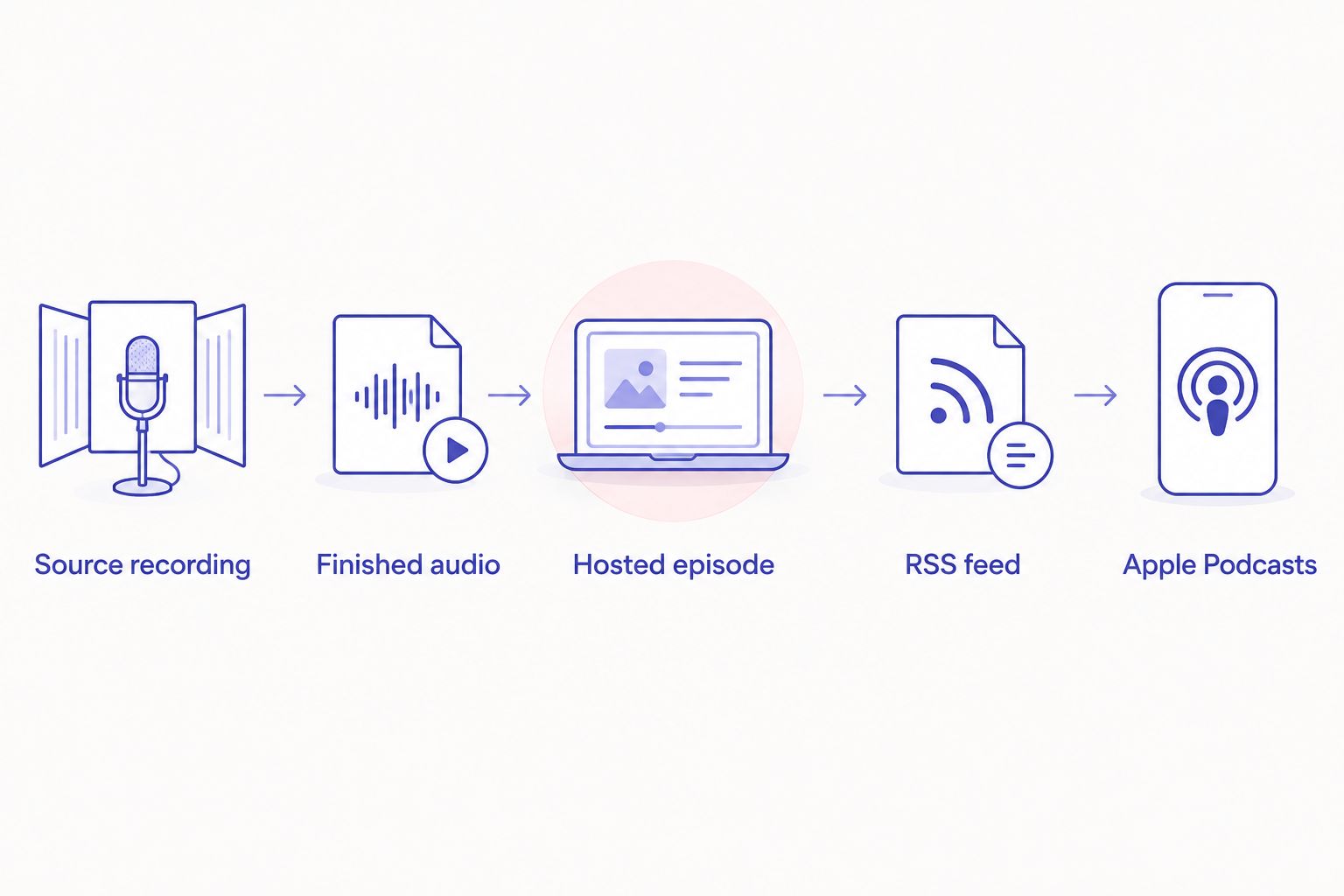
A feed is more than a list of titles. Each episode needs an enclosure that points to its media file. Your podcast host normally creates that information; manually pasting a sharing link into episode notes does not create a playable episode.
Apple Podcasts Connect submission
Submit the show through Apple Podcasts Connect after the feed and first episode are ready. This is a show-level connection, not a recurring file-upload task.
Add the RSS show
- Sign in to Apple Podcasts Connect with the Apple Account that will manage the show. Complete any account setup presented before proceeding.
- Use the add control and choose New Show.
- Select Add a show with an RSS feed. This keeps the publishing source in your podcast hosting account.
- Enter the feed address in RSS Feed URL, then select Add. Paste the full address copied from your host.
- Review the imported show information. Check the title, artwork, description, and episodes against your host’s published information.
- Resolve any feed errors shown during validation. Correct feed-controlled information in the hosting account, then check the submission again.
- Review the show’s availability settings and complete any required details. Select Publish when the show is ready for submission.
Expected result: Apple Podcasts Connect contains the submitted show and displays its processing or review status. Submission does not mean the public listing is immediately accessible.
Do not promise listeners a release based only on clicking Publish. Confirm that the public show page exists and that its episode plays before announcing that the show is on Apple Podcasts.
For a 2026 launch, keep a simple submission record: the feed address, account owner, submission date, and public show destination once it exists. This is an access record, not another publishing system.
Public listing and playback checks
The last configuration unit is verification. An accepted feed still needs a listener-side check.
Verify the published episode
- Open the public show in Apple Podcasts after it becomes accessible. Check that you have the correct show, not another podcast with a similar title.
- Compare the public title, cover artwork, show description, and episode information with the details in your host.
- Start the episode and listen to its opening. Seek to the middle and ending to check that the expected recording is present throughout.
- Confirm the episode’s explicit-content label and publication date. Correct errors in the host when those details come from the RSS feed.
- Record the public listing destination in your production notes. Keep the RSS feed address separate so nobody mistakes the listener page for the publishing feed.
Expected result: A listener can find the correct show and play the intended episode in Apple Podcasts.
Check playback, not just the thumbnail. Artwork proves that show information arrived; it does not prove that the media file is complete or correct.
Publish whenever a new episode is ready
Once Apple has accepted the RSS show, later episodes follow a shorter route. Publish through the same podcast host rather than creating another show in Apple Podcasts Connect.
- Download the next session’s files and preserve the originals.
- Edit and export the next finished audio episode.
- Add that audio to the existing show in your hosting account.
- Enter the episode-specific title, notes, content label, and publication schedule.
- Publish through the host. Apple Podcasts reads the updated feed; updates are not an instant file push.
- Verify the new episode in the public listing after Apple processes the update.
Expected result: The next episode appears under the existing show, with its own information and playable audio.
For your recurring 2026 workflow, separate preparation from publication. Keep incomplete episodes as drafts. Schedule only the version that has passed your listening check.
Replacing an episode’s audio is different from publishing another episode. Use the host’s replacement process when correcting the same release. Do not delete and recreate it casually: changing episode identity can affect how podcast apps recognize the entry.
Troubleshooting
Apple rejects the RSS feed address
Fix: Copy the public podcast RSS address from your host again. Do not use a Google Drive sharing link, account dashboard URL, or show webpage. Check the host’s feed validation guidance and confirm that the show has a published episode.
The show appears, but the episode does not play
Fix: Test playback on the host’s public episode page first. Confirm that the media upload finished and that the episode points to the intended audio file. If it fails there too, correct the hosted file before troubleshooting Apple.
Artwork fails validation
Fix: Export square artwork within Apple’s accepted RSS dimensions, using JPEG or PNG and RGB color space. Upload the corrected file through your host. A rectangular image or a file that is merely renamed does not meet the format requirements.
A published episode is missing from Apple Podcasts
Fix: Check that the episode is public and its scheduled release time has passed. Confirm that it belongs to the exact feed connected to Apple. If it is present in that feed, check Apple Podcasts Connect for show-status or feed errors before creating another submission.
Old audio plays after a replacement
Fix: Play the host’s current media file directly to establish which version is published. A previously downloaded episode can remain on a listener’s device after the hosted file changes. Remove the local download and test the current episode again; do not assume a local copy reflects the latest file.
Customize your workflow
Assign an owner to each handoff: recording files, audio approval, hosting, and public verification. One person can own every stage, but every stage still needs a check.
Use the same episode title in your production notes and hosting draft. Keep the source files, working project, and final export clearly separated. That makes corrections easier without turning your recording folder into the public archive.
Justpushrecord’s three-camera recordings also support a separate video editing workflow. Finish the audio release without waiting for every video asset, unless your publishing plan deliberately requires both formats together. Keep podcast distribution and video distribution as separate checks.
FAQ
How do I get a studio podcast recording onto Apple Podcasts?
Edit the recording into finished audio, publish it through a podcast host, and submit the host’s public RSS feed in Apple Podcasts Connect. After Apple accepts the show, publish later episodes through that same host.
Can I submit a Google Drive link to Apple Podcasts?
A Google Drive sharing link is not a podcast RSS feed. Download the recording, prepare the finished audio, and publish it through a host that supplies a public feed.
Does Justpushrecord publish my episode to Apple Podcasts?
This workflow uses Justpushrecord for automated recording and Google Drive file delivery, then uses a separate podcast host for publishing. Complete the hosting and Apple Podcasts submission steps before treating the episode as released.
Do I need to submit every episode in Apple Podcasts Connect?
No. Once Apple accepts your RSS show, publish subsequent episodes through the host connected to that feed. Check the public listing after each release.
Can I use audio from a three-camera podcast recording?
Yes. Export the finished audio from the recording or editing project and upload that audio to your podcast host. Keep the video files for a separate video release.
What cover artwork size should I use for Apple Podcasts?
For an RSS show, use square JPEG or PNG artwork between 1400 × 1400 and 3000 × 3000 pixels in RGB color space. A 3000 × 3000-pixel master fits that accepted range.
Why is my new episode missing from Apple Podcasts?
First check that the episode is public in the correct host feed and that its scheduled publication time has passed. Then check Apple Podcasts Connect for feed or show-status errors; Apple updates are not instantaneous.
One last thing
Your RSS feed is the connection that keeps the show together. The recording folder and public Apple listing serve different purposes.
For your 2026 production checklist, save the feed address alongside the account owner and recovery details. When access is clear, the next episode is another publishing cycle—not another show launch.